




SharePoint, a powerful collaboration platform, offers a myriad of tools to facilitate efficient workflows within teams. One such capability is the ability to create templates that dynamically extract content from lists, empowering users to automate repetitive tasks.
In this blog post, we will delve into the process of creating a template in SharePoint to extract dynamic content from one list and automate the distribution of this content via email using Power Automate. By harnessing the integration between SharePoint and Power Automate, users can save valuable time and resources while ensuring that pertinent information reaches the right stakeholders in a timely manner.
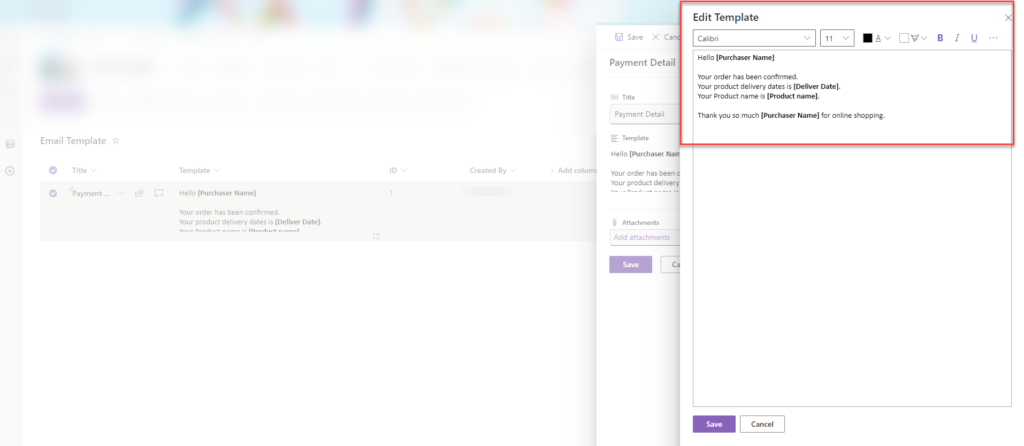
In the SharePoint list, we have created two lists. The first list is named “Email Template” list. In this list, we have created a column called “Template,” which is a multiple lines of text column. We have added an email template to the “Template” column by creating a new entry in this list.
Additionally, we have created a template where we retrieve four values from another list: “Purchaser Name,” “Delivery Date,” “Product Name,” and “Purchaser Name.”
The second list is named “Online Order Product Details,” where we have created a “Delivery Date” column as Date and Time. Additionally, we have a “Product Name” column, which is a choice column, and we’ve included the default “Created By” column provided by SharePoint.
In the template, we replace “Purchaser Name” with the name of the creator, retrieved from the “Created By” column in the list. The “Delivery Date” is substituted with the dynamic value from the “Delivery Date” column in the “Online Order Product Details” list. Similarly, the “Product Name” column is replaced with the dynamic value from the “Product Name” field in the “Online Order Product Details” list.
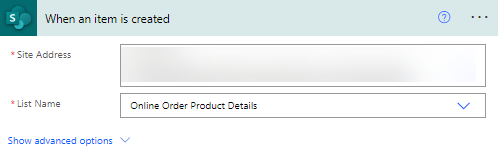
Step:1 Add “When item is created” action and specify the site URL and list name from which dynamic values are retrieved from the list.
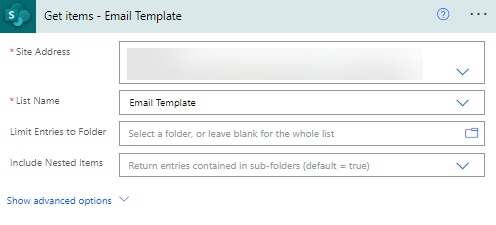
Step:2 Add the “Get Items” action and specify the site address and list name that the user has created Template in the list.
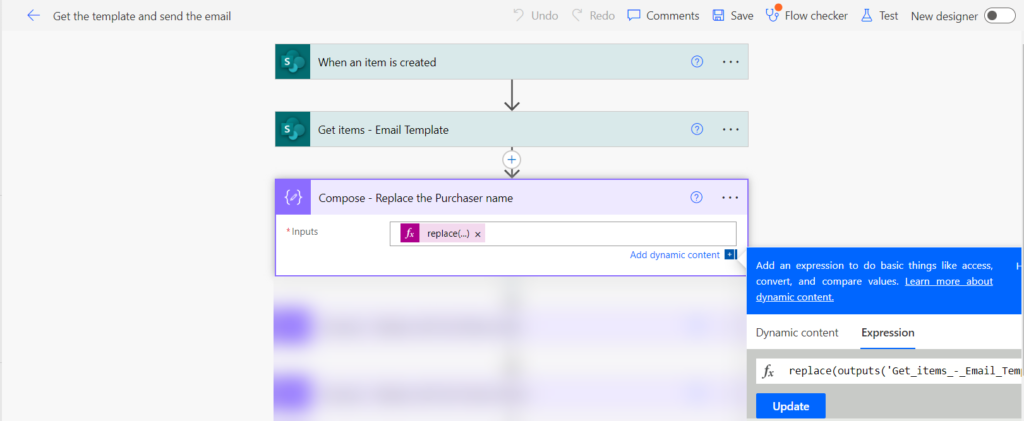
Step: 3 Add the compose action and create the expression first replace the Purchaser name with created by display name.
Add the below expression in the compose action.
First, add the “Replace” value. Then, include the “Get Items” action to retrieve the value. Here, we obtain the data at index “0” to retrieve the number 1 ID. Next, specify the column name where we have created the template in multiple lines of text. Add a comma after this, and then include the dynamic name you wish to use to replace the original data. Please add a comma after the dynamic name. Finally, include the “Created By” display name, which retrieves data from another list.
replace(outputs(‘Get_items_-_Email_Template‘)?[‘body/value’][0][‘Template’],'[Purchaser Name]’,triggerOutputs()?[‘body/Author/DisplayName’])
Step:4 First, add a new “Compose” action. Add the “Replace()” expression . Inside the brackets add the below compose output get the from dynamic content. Then, specify the name which will replace the deliver date. Last, add the value of the delivery date.
replace(outputs(‘Compose_-_Replace_the_Purchaser_name‘),'[Deliver Date]’,triggerOutputs()?[‘body/DeliveryDate‘])
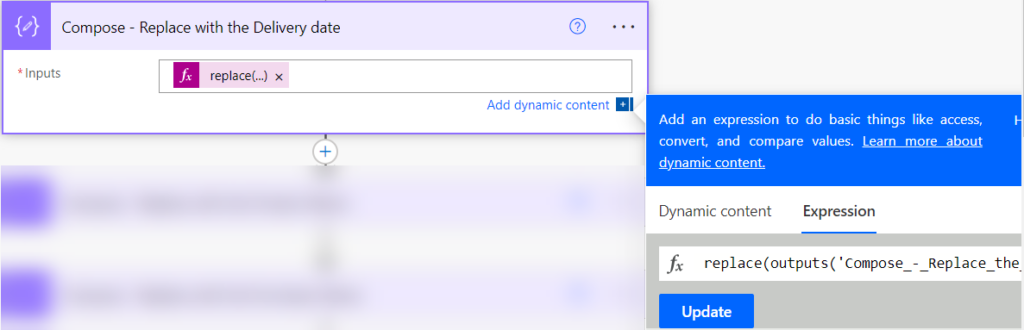
Step:5 First, add a new “Compose” action. Add the “Replace()” expression. Inside the brackets add the below compose output get the from dynamic content. Then, specify the name which will replace the Product Name. Last, add the value of the Product Name.
replace(outputs(‘Compose_-_Replace_with_the_Delivery_date‘),'[Product name]’,triggerOutputs()?[‘body/ProductName/Value’])
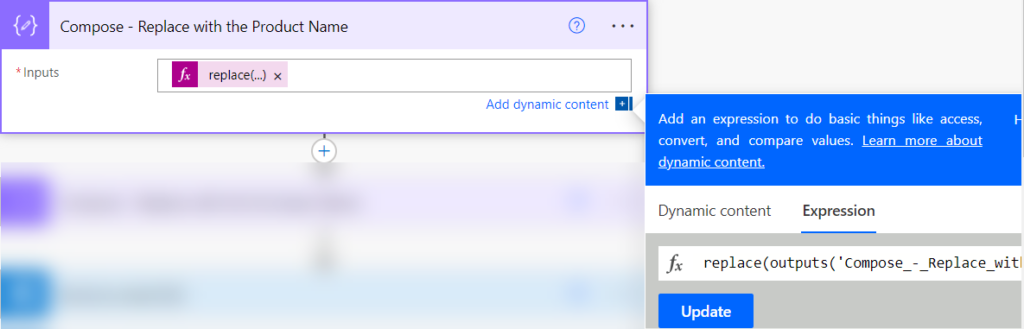
Step:6 First, add a new “Compose” action. Add the “Replace()” expression . Inside the brackets add the below compose output get the from dynamic content. Then, specify the name which will replace the Purchaser Name. Last, add the value of the Created by display name.
replace(outputs(‘Compose_-_Replace_with_the_Product_Name‘),'[Purchaser Name]’,triggerOutputs()?[‘body/Author/DisplayName’])
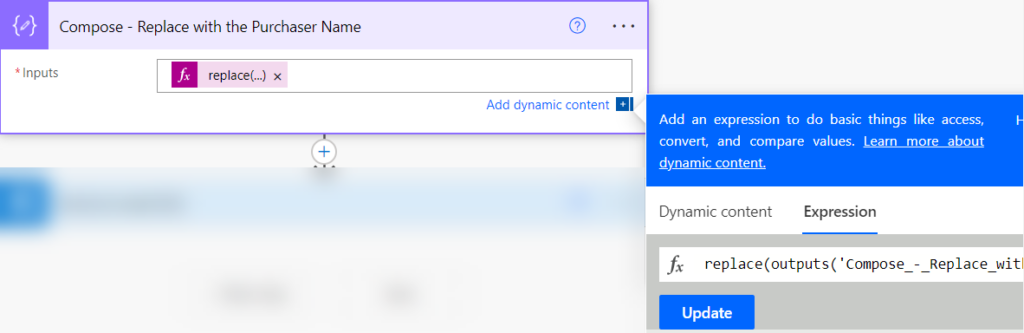
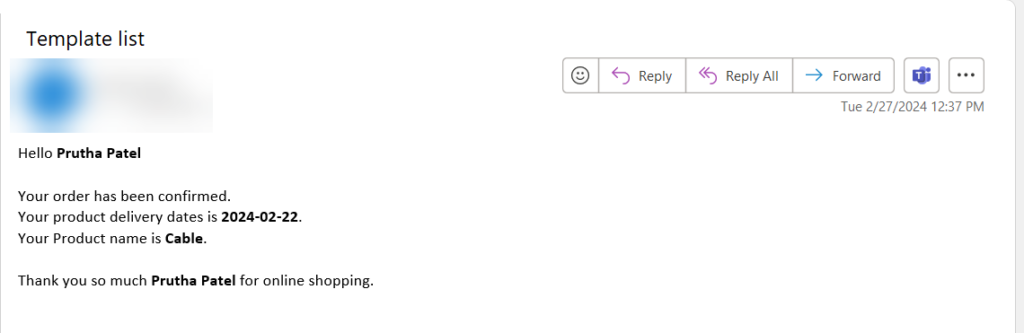
Step:7 Last add the send an email action. Add the required filed. In the body add the last compose output add in the body. Click on the save button and test the flow. Show the output also user can change the template according to the requirement in the list user can not go to the power automate and change the manually every time.
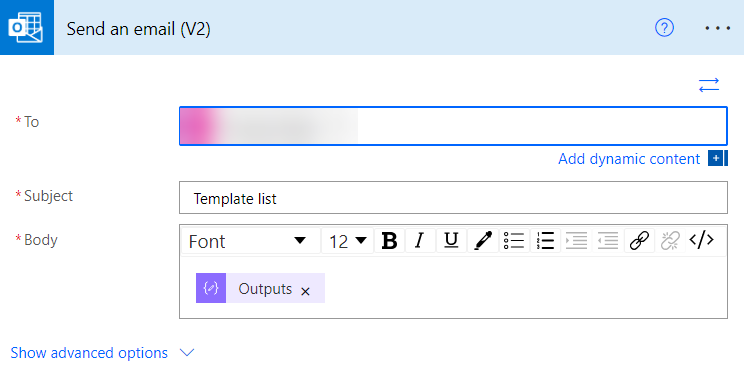
Step: 8 Use can also add the other dynamic value in the SharePoint and add the step by step add the compose action. Click on the save button and run the flow and see the output in the email.
Conclusion: By creating a template in SharePoint to extract dynamic content from one list and automating the process of sending it via email using Power Automate, businesses can significantly enhance their efficiency and productivity. This integration not only saves time but also ensures accuracy and consistency in data dissemination. As organizations continue to seek ways to optimize their workflows, harnessing the capabilities of SharePoint and Power Automate provides a robust framework for achieving these goals. Whether it’s for reporting, notifications, or any other communication needs, this solution offer a flexible and scalable approach to managing information flow within teams and across departments.
Want to talk?
Drop us a line. We are here to answer your questions 24*7.